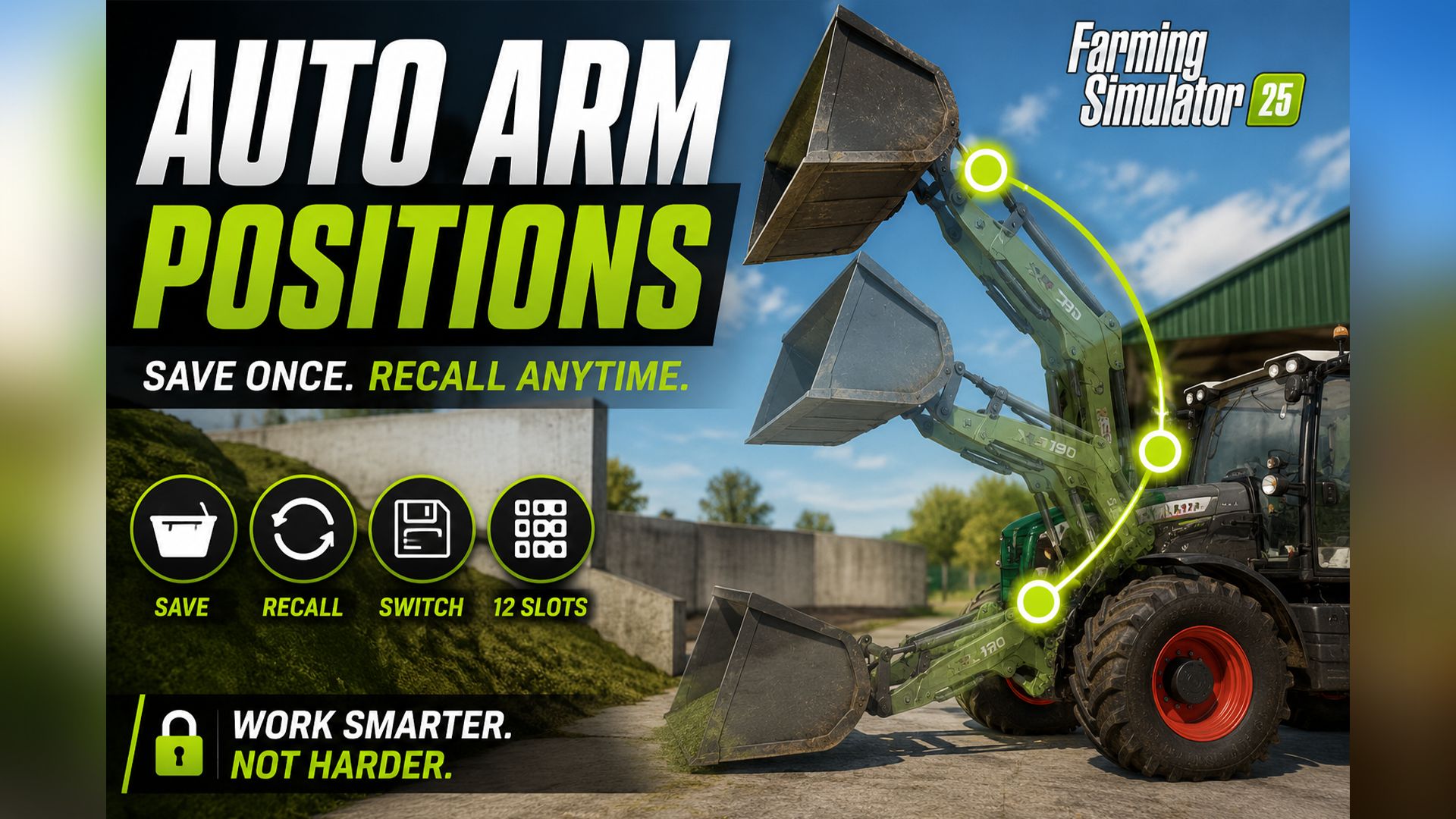
Save your loader positions once — and recall them whenever you need them. No more fiddling with lift, tilt, and telescoping.
What does this mod do?
Imagine you’re driving silage into your silo. Each time:
– Bucket down → scoop up material
– Bucket up → drive to the trailer
– Bucket tilted → tipping
– Bucket down again
Constantly repeating the same movements, constantly adjusting three axes. **With this mod, you save each position once — and recall it at the touch of a button.** Your loader automatically moves into the desired position. Lifting arm, bucket tilt, and even telescopic extension — all at once.
Works for:
– Shovels (silage, manure, bulk materials)
– Pallet forks
– Bale spikes
– Forklifts
With 4 modes and 12 slots per mode** you have up to 48 positions per vehicle.
Key assignment
Key What it does
**O** Switch mode (shovel → pallet forks → bales → forklift → shovel…) |
**Alt + O** Save current position in active mode
**Numpad 7** Move to next saved position
**Numpad 8** | Move to previous saved position
Note: Num Lock must be enabled for Num Lock keys. If the keys don’t respond or conflict with other mods, simply reassign them in the game menu under **Options → Input.
Step-by-step: First use
Example: Loading silage into the trailer with the front loader
1. Select Mode
– Get on the loader (or the tractor with the front loader attached)
– Press **O** until the HUD displays: *”Mode: Bucket”*
2. Saving Positions
– Move the shovel to **Loading Position** (at the bottom of the material, slightly tilted)
→ **Alt + O** → *”Shovel – Slot 1 saved”*
– Move the shovel to **Transport Position** (high, slightly tilted back)
→ **Alt + O** → *”Shovel – Slot 2 saved”*
– Move the shovel to **Dump Position** (over a trailer, tilted forward)
→ **Alt + O** → *”Shovel – Slot 3 saved”*
– Move the shovel to **Reverse Position** (medium height, empty)
→ **Alt + O** → *”Shovel – Slot 4 saved”*
3. Use during operation
– Arrived at the material → **Numpad 7** → Bucket moves to loading position
– Material picked up → **Numpad 7** → Bucket automatically lifts
– Over trailer → **Numpad 7** → Bucket automatically tilts
– Returning to the material → **Numpad 7** → Bucket in reverse position
– At the material again → **Numpad 7** → Returns to first position
Four keystrokes per cycle instead of constant mast pushing
Tips for optimal use
Separate Slots for Each Vehicle
Each vehicle stores its own slots. Your front loader tractor and your wheel loader have independent positions. For front loader attachments, the slots are linked to the loader itself — you can attach it to a different tractor, and your positions will be retained.
The correct mode for each attachment
When switching between bucket and pallet forks:
– Press **O** until the appropriate mode is active
– Slots of the respective mode remain saved separately
– Switching back with **O** restores the old slots
Empty slots are skipped.
You don’t have to fill all 12 slots. If you only fill slots 1–4, **Numpad 7** will jump back to slot 1 after slot 4 — slots 5–12 will be skipped.
Overwrite Slot
Alt + O saves to the next slot in the sequence (1 → 2 → 3 → … → 12 → 1). When all 12 slots are full, slot 1 is overwritten.
Caution in enclosed spaces:
When starting up, **all axes move simultaneously**. If your “High Drop” slot was saved in a hall and you are standing in a low barn, collisions with the ceiling may occur. No problem in open areas.
Supported Vehicles
Vehicle Type Status
Front loaders on tractors (Bressel & Lade XB190 etc.) Works
Wheel loaders (Volvo L120H, JCB etc.) Works
Telescopic handlers (Sennebogen G340, JCB Loadall etc.) Works (incl. telescopic extension)
Forklifts (Jungheinrich EFG etc.) Works
Manure fork, high-tip bucket, grapple attachments Works
Basically, the mod supports any vehicle that has hydraulic controls in the game.
Save to Savegame
All saved positions are automatically saved in the game. They will be restored when you start the game. This applies to each vehicle separately. You don’t need to manually export or save anything.
Multiplayer
Multiplayer compatible** — the mod can be used on MP servers.
– Slots belong to the vehicle, not the player.
– If you save slots and another player takes over the loader, they can use the same slots.
– When saving on a multiplayer server, the slots are stored in the server’s save file.
Multiplayer Beta Notice: Saving slots by client players has not been extensively tested. If you encounter any problems, please let us know.
Installation
1. **Do not extract the ZIP file**
2. Copy it to the FS25 mod folder:`C:Users\DocumentsMy GamesFarmingSimulator2025mods`
3. Start the game → load a save game or create a new profile
4. Activate the mod in the mod menu
5. Get on a loader — let’s go!
FAQ
What happens if I accidentally save to the wrong slot?
Press **Alt + O** repeatedly — the next save operation will go to the next slot. After 12 repetitions, slot 1 will be available again and can be overwritten. Alternatively, you can move the loader to the desired position for that slot and press **Alt + O** at the right time.
Are the claw positions of grippers also saved?
Yes. For gripper tools with an additional claw axis, the claw state is also saved. So, if you save slot 1 with “claw open” and slot 2 with “claw closed,” these states will also be restored when the gripper is moved.
Does this also work if I want to open/close a grabber while the movement is running?
Yes, but it will jerk because the mod is trying to move the claw to the saved value at the same time, and you’re working against it. Let the auto-movement finish first.
Can I change the keys?
Yes, in the game menu under **Options → Input** you can reassign each key.
What if the mod doesn’t do anything on a particular vehicle?
The vehicle probably doesn’t use the standard hydraulic system (cylindered) or doesn’t have any controllable tools. This can happen with very old or exotic mod vehicles.