
BUG ModManager v2.9
This is NOT a MOD! It’s a program for managing your mods before starting the game. Keep the program in a different location than your mod folder.
Technically, it works like this:
# All mods contain a file called modDecs.xml. The game first reads this file and then, using the relevant instructions within the file, accesses other files it needs to read. The program works on a similar principle. First, it finds the modDecs.xml file within the mod’s ZIP file. Then, it retrieves what it needs from this file and performs its functions. If the program displays an ERROR window upon startup, it means that the modDecs.xml file is either missing or contains an unreadable error in the relevant MOD file. It can work in all FS games with this structure. I developed and tested it for FS25.
Usage:
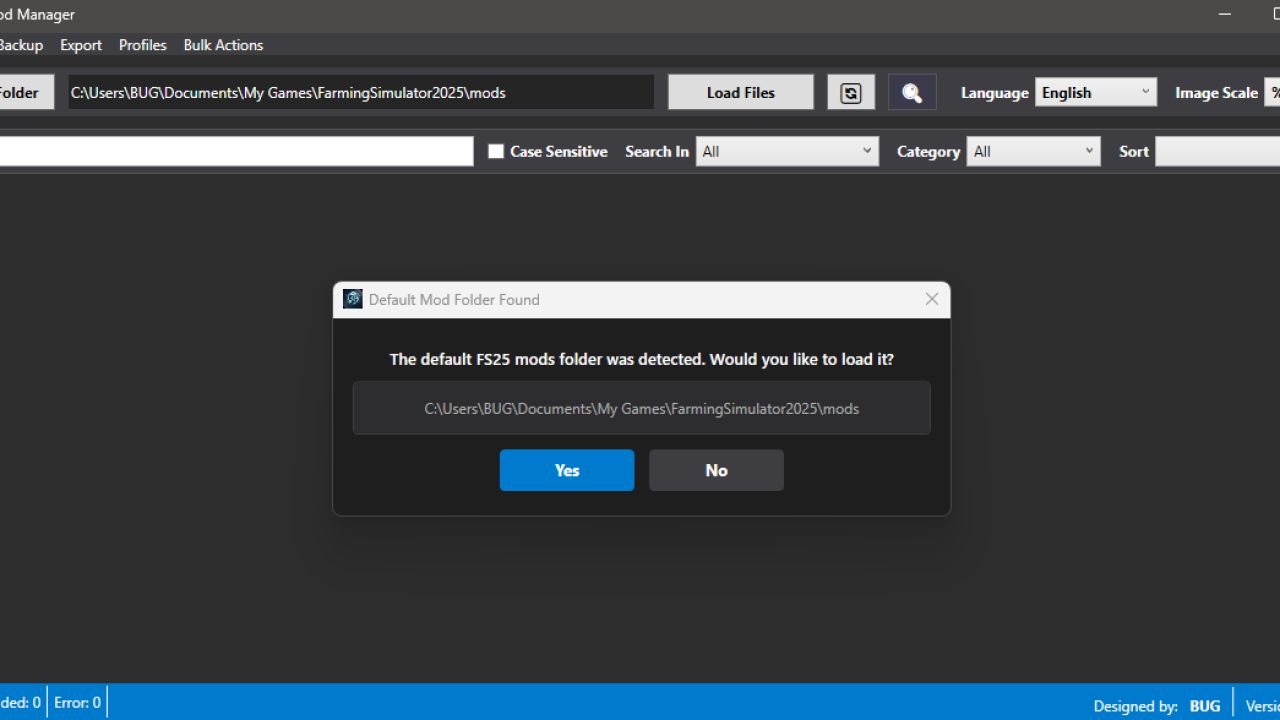
From the left menu, select the MOD folder located in any location. If you haven’t changed it, it’s in “C:Users%username%DocumentsMy GamesFarmingSimulator2025mods”. After clicking the “Upload Files” option, you wait for the mods to be listed. If there are no errors when the mods are listed, you will receive a notification that the process was successful. Clicking “OK” will make everything ready for use. If you receive an error, the relevant window will provide the necessary instructions. Next to the “Upload Files” button, there is a “Refresh” button. Its function is to transfer only the changes to the list without reloading the entire mod. If you download a new mod or manually delete one outside the program, it will only transfer the changes without closing the program.
Thank you in advance to everyone who shows interest.
Update Roadmap:
Support for additional languages. Primarily German and Russian.
#ModHub Update Check: I believe I can implement this using an HTML-based approach. As far as I can tell, Giants does not currently offer API support for this. I can enable this functionality for mods hosted on platforms like GitHub that utilize static HTML links. A system would be established allowing users to enter the HTML addresses of specific sites—provided they have fixed URLs and consistent content structures—via a menu; the tool would then perform mod update checks by monitoring these designated sites.
#Drag & Drop Installation: A feature allowing users to install a mod simply by dragging and dropping it into the program window. This process could also work in reverse, enabling users to move a mod from the program to any other location by dragging it out.
Mod Notes: A feature to add custom notes for each individual mod displayed within the mod window.
ModCard Selections: The ability to perform specific actions on multiple mods simultaneously using multi-selection.
Mod Search History: A log of the last 5 search queries performed. This number is subject to change, though I believe 5 should be sufficient.
#Right-Click Context Menu for ModCards: I am currently undecided on this feature. If I were to implement it, the main menu would display only the mod thumbnails, requiring users to utilize the right-click context menu to access specific mod details and options. While this might offer a visually cleaner interface, it could potentially result in a less efficient user experience in terms of functionality.
Version 1.0.1 changes:
You can now change the “category” data for mods in the EDIT window. For example, you can move your mod from the Small Tractor category to the Medium Tractor category.
# Mod window names were not being translated during language changes; now they are displayed in the current language.
Version 1.0.2 changes:
# The default language is now English. I should have thought globally from the start. 😀
# If there are faulty modules, an additional window has been added for this, and some changes have been made to how the code works. If there are files causing ERRORS on the first read, you will now receive a warning window when the loading process is complete. Here you can see the names of the faulty files. You can now export these files to a TXT file by name, move them to a folder named ERROR_FILES, or delete these files directly. Also, when you close the window, you can reopen it by clicking on the ERROR warning area below.
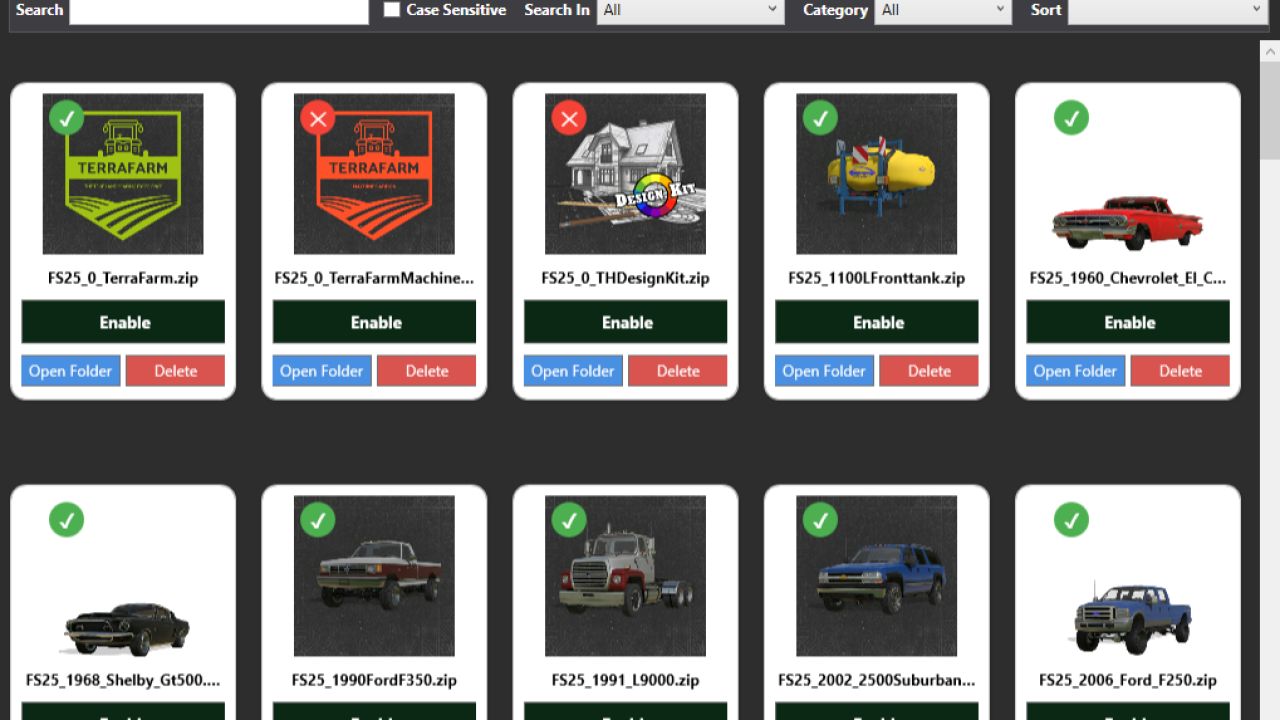
# Two more buttons have been added to the mod cards. I added a “FOLDER” button to go directly to the file’s relevant folder with the selected file. Also, if desired, there is now a “DELETE” option in the main menu.
Version 1.0.3 changes:
#Performance improvements. The application now runs faster.
#Date option added for the Sort function. Modes can now be sorted by modification date.
Version 1.0.3.1 changes:
# Visual issue with mod cards in the main menu has been fixed.
Version 2.0.0.0 changes:
# The main mod catalog has been changed. Now, to EDIT a mod, simply click on the relevant mod. Mods that don’t have an EDIT function have a red X in the left corner.
# There are now various functions in the top bar: Statistics, Backup, Export, and Batch Operations.
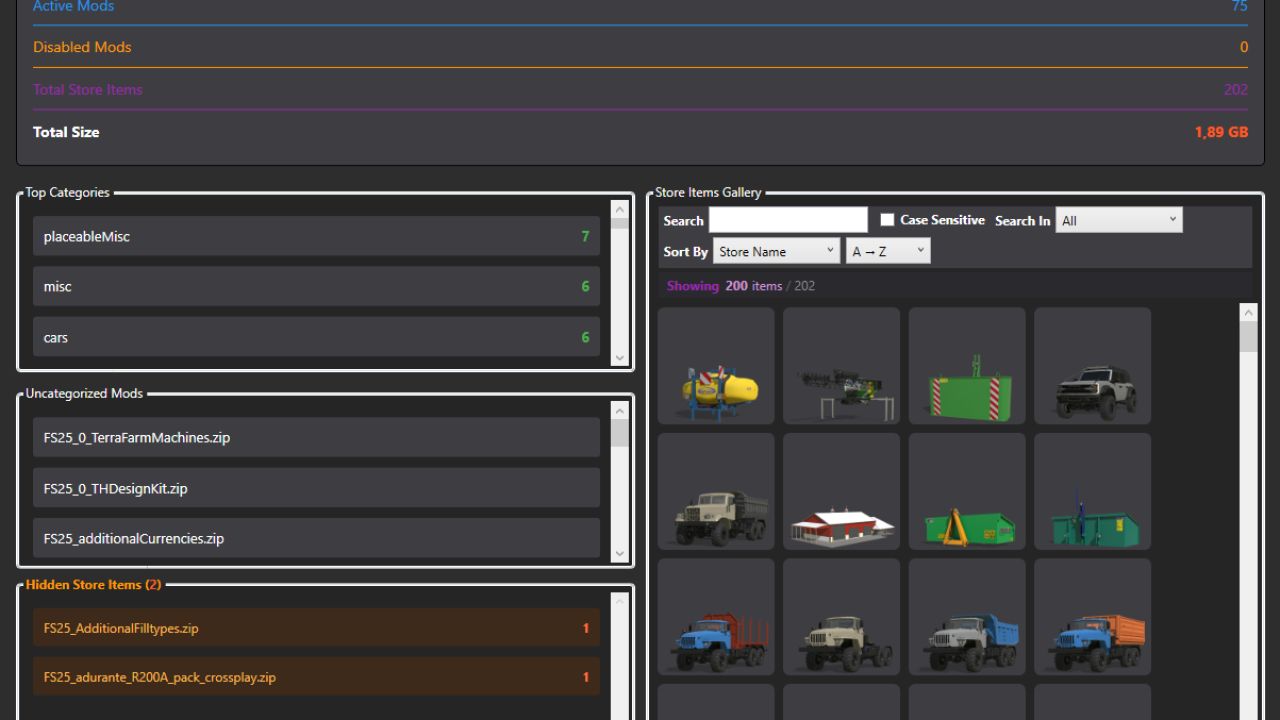
# The Statistics window displays the total number of mods, the number of active and inactive mods, the total number of items visible in the store, and the total size.
# The Statistics window has 3 main sections: how many mods are in each category, non-category mods (generally script mods), and an area where you can see the item content of all mods in the store (search function and clickable items are active).
# The backup function is useful for backing up all mods to a desired location. Similarly, there is a restore option, and both functions work comparatively (whether similar mods exist or not).
# The export option outputs all mods as TXT and JSON files, including their names, creators, versions, and sizes. You can use this to send it to someone else.
# Currently, the Bulk Operations menu only offers the function to activate or deactivate mods in bulk. More options may be added in the future based on requests.
# The search function now works more thoroughly in all fields.
# You can now only enter numbers in the Maximum Speed, Price, Lifespan, and Power sections of the EDIT window. I added this control mechanism to prevent potential accidents. Also, the Name section now allows you to change entries in different languages separately.
# I added a Refresh button next to the Load Files button. It only adds the changes to the list without completely reloading the mods.
# The program can now remember the location of the latest folder.
Version 2.0.0.1 changes:
# Initially, searching for the default mod folder location and related processes were added.
Version 2.9.0.0 Changes:
# An error scanning mechanism has been added to run automatically after the initial loading process is complete. If you approve, it performs a minor XML error check and, should any issues be found, identifies the problem along with the relevant file and line numbers. An automatic correction feature has been added, though it may not always function correctly; manual correction is always recommended.
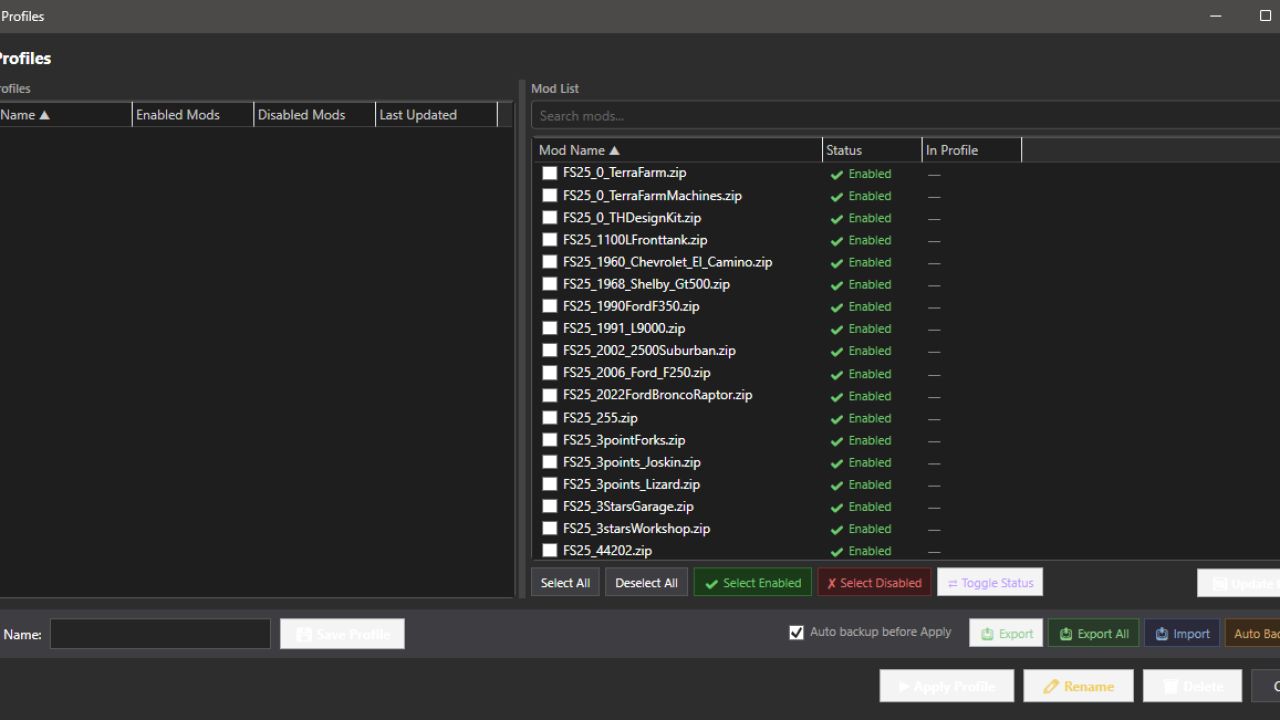
# A “Mod Profiles” option has been added. You can now save your desired mods into specific profiles and activate only those mods with a single click.
# An option to move your default mod folder to a different location has been added under “Batch Operations.” This feature utilizes symbolic links (symlinks).
# A new feature named “Image Scale” has been added to the main menu. Its purpose is to reduce RAM usage by lowering the quality (on a percentage basis) of the image files displayed within the Edit and Statistics windows. This proves beneficial—even if only slightly—when a large number of mods are installed. The default value is set to 50%.
# The Statistics window has been updated to display the item count for the “Store Items Gallery.” Additionally, a new section titled “Hidden Store Items” has been added to the left-hand menu to list mods that are either invisible or currently lack content; this feature is provided for informational purposes only.
# The Edit window now displays the item count specific to each individual mod.
# New options have been added to the sorting functions.
# The issue with the expanding list in the “Restore Backups” menu has been resolved.
# General performance and security improvements have been implemented.